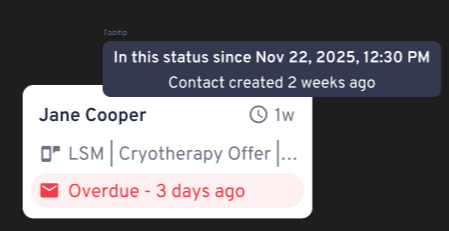
Understanding Filter Options
You can now choose how the Pipeline calculates time for sorting and filtering. This determines which contacts appear when you apply date-based filters (e.g., “Last 7 Days”).
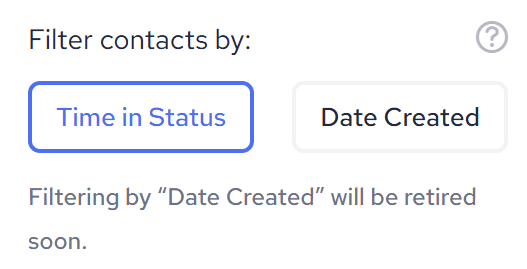
- Time in Status (Recommended): Measures how long a contact has stayed in their current status. The timer resets only when the status changes. For example, if an old contact moves from “Leads” to “Trial,” they will be treated as newly added to that status.
- Date Created: Measures time based on when the contact was originally created in the system. Older leads will remain “older” even if they recently moved to a new status.
How to Apply the Filter
- Navigate to your Pipeline view.
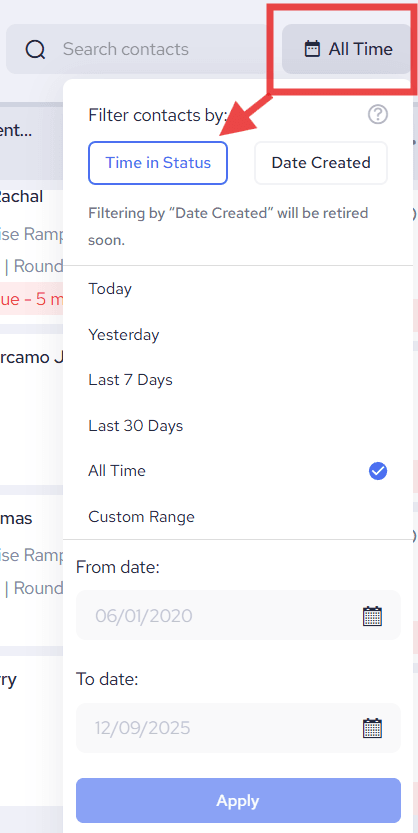
- Click the Date Filter dropdown (e.g., “All Time”) in the top right corner.
- Under “Filter contacts by:”, select your preferred rule:
- Time in Status: Best for following up on recently active or moved contacts.
- Date Created: Best for historical tracking of when leads first entered your system.
- Choose your desired timeframe (Today, Last 7 Days, Custom Range, etc.).
- Click Apply.
Who sees what?
- Default Setting: “Time in Status” is the default filter for all accounts to ensure you are seeing the most relevant, active contacts.
- New Accounts: To simplify the experience, new accounts will only see the “Time in Status” option.
- Existing Accounts: You will see both “Time in Status” and “Date Created” to allow for a smooth transition.
Pro Tip: You can always see the current “Time in Status” directly on a contact card in the Kanban view, indicated by the clock icon.