Every email campaign, including follow-ups, includes detailed reports that track how many emails were sent, who opened them, who clicked on the content (and where), bounced emails, and all other essential metrics. This provides you with a clear understanding of how engaging your content is and identifies your most engaged clients based on the information you share. Below, we’ll provide an overview of where to find these reports and explain what they indicate.
Where are campaign reports located:
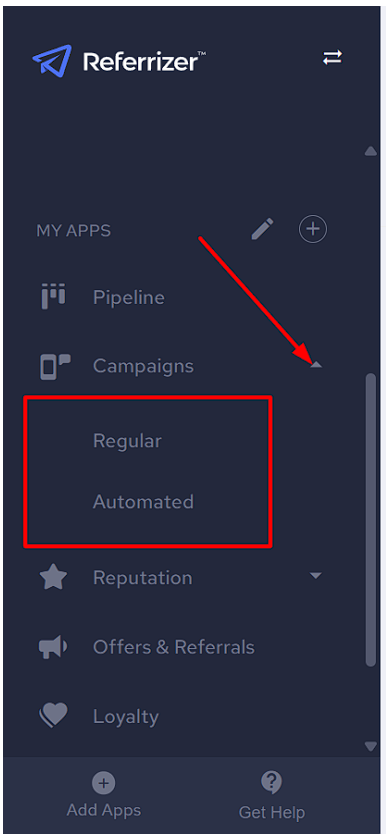
Each email campaign you run will have its own separate report. First click CAMPAIGNS on the left side of your account and select either Regular or Automated based on your preference.
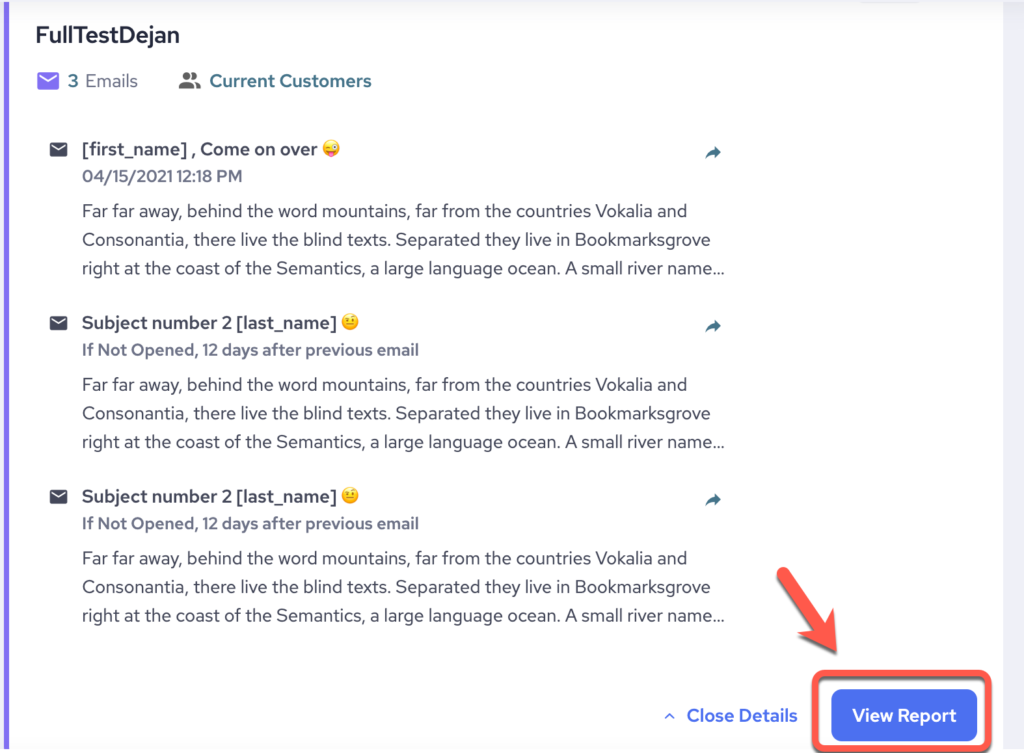
Next, locate the email campaign for which you want to view the report, and click anywhere on it. This will open a detailed view of the report.
Click on “View Report” located at the bottom right.
Reports take about 24 hours to generate.
What information is contained in the reports?
Let’s go over a brief summary of the report sections:
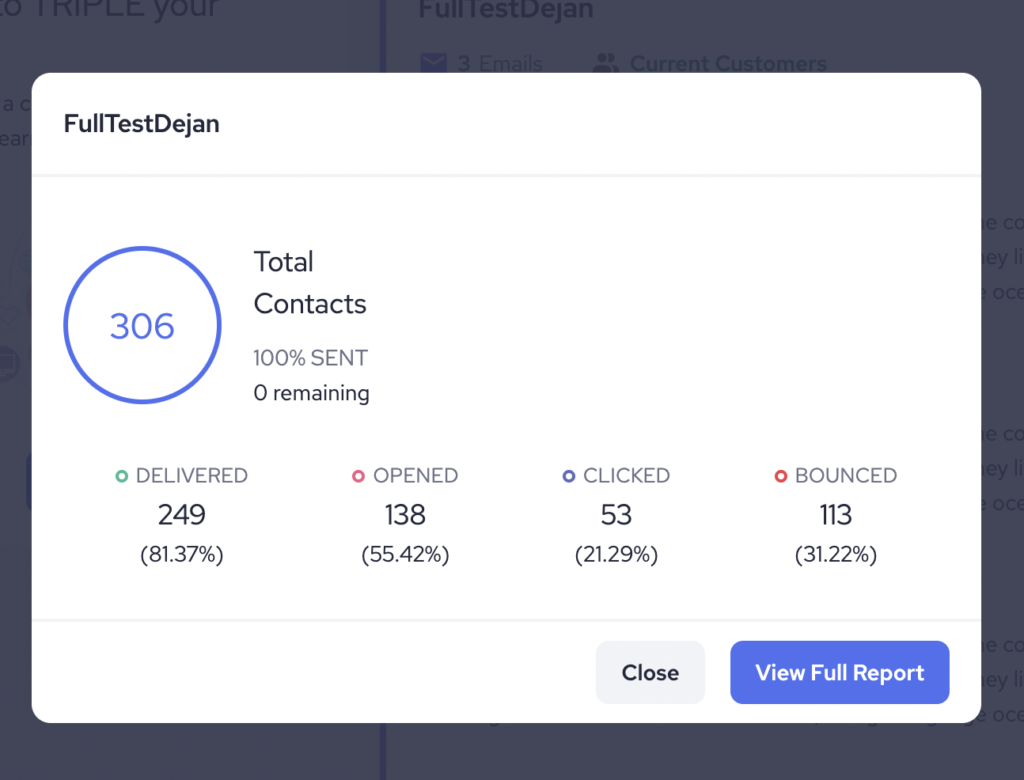
If you click on “View Full Report” you will see a more detailed list, like the one below
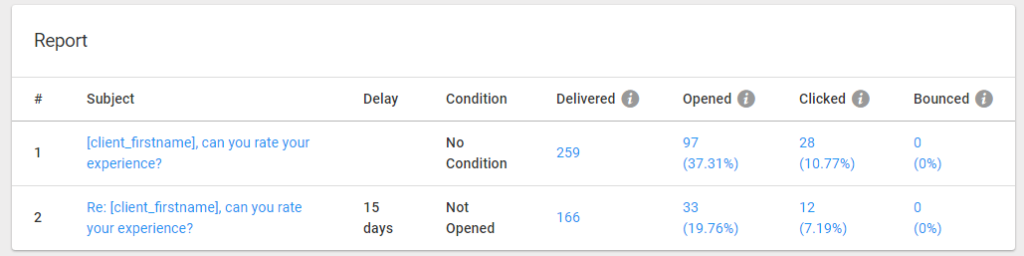
Delay: This refers to the follow-up campaigns and how many days after the initial email the follow-up was sent. As shown in the image above, there is a follow-up sent 15 days after the first email in this campaign.
Condition: This is also related to follow-up emails. It indicates if a condition was set, such as sending the second email in the campaign only if the recipient did not open the first one.
Sent: This shows how many people on your list were sent the email. It does not include those who were previously unsubscribed, either due to their request or because of a bounce.
Delivered: This number represents how many recipients actually received the email.
Opened: This is your open rate, showing how many people actually opened and read your email.
Clicked: If your email included links, this section will show you who engaged with the content and what they clicked on.
Bounced: In this section, you’ll see emails that could no longer be delivered or were not accepting messages at the time of sending.
For sections 3-6, each number is clickable, and doing so will provide more detailed information. We will now go over these report pop-ups in greater detail.
Delivered & Opened:
Clicking on the number for delivered (or opened) emails will take you to a page where you can search and export the list of recipients who received or opened your email. Additionally, in the “View” drop-down menu at the top left, you can easily switch between the different statuses.
Clicked:
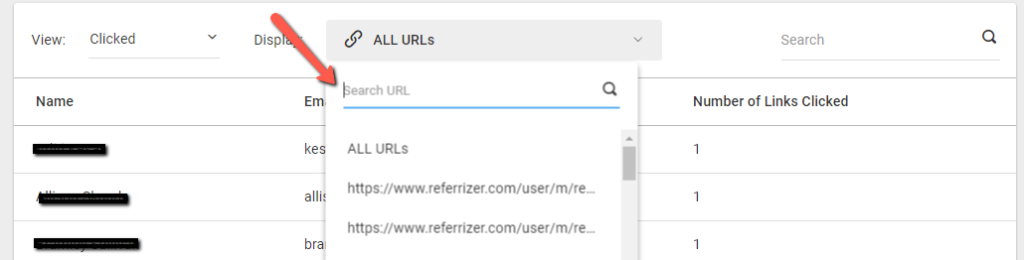
The clicked report provides more detailed information. It includes an extra dropdown that allows you to search for a specific link. You can see who clicked on any links in your campaign and how many times they engaged with each link.
Bounced:
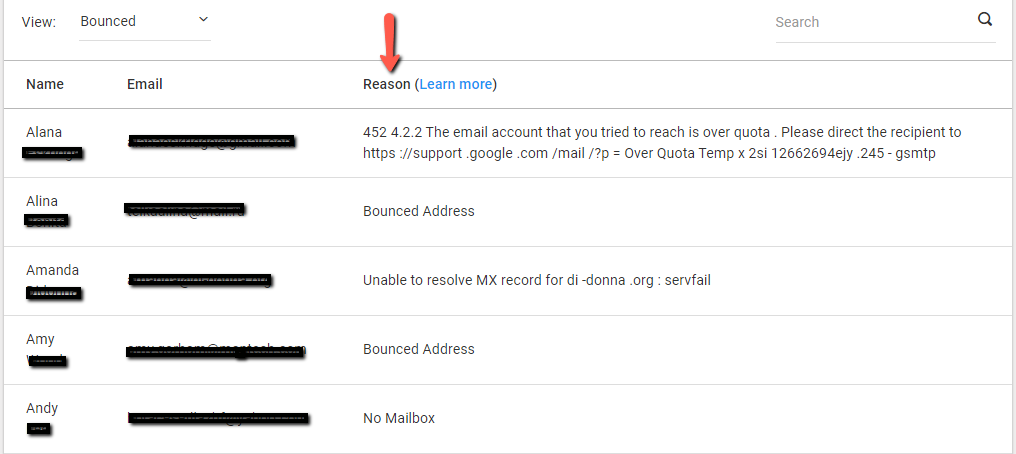
This will tell you which email addresses were unable to receive your email and the reason behind it. There can be many factors to this such as old/invalid email, email full at the time of send, blocked email, server issues. We allow 2 bounces before an address is unsubscribed to maintain a good rating for your account.