
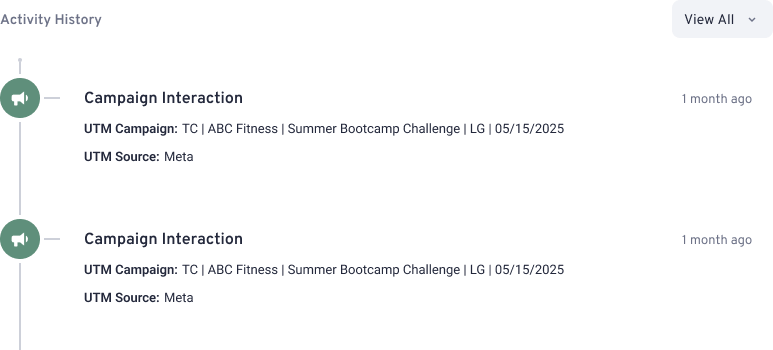
Understanding exactly how a lead found your business is key to optimizing your marketing budget. With our latest update, you can now filter a contact’s Activity Feed by UTM Tracking parameters.
This allows you to see which specific campaigns, sources, or ads triggered a contact’s actions (like a website visit or form submission) directly within their profile.
What are UTM Parameters?
UTM (Urchin Tracking Module) parameters are tags added to the end of a URL to track the effectiveness of online marketing campaigns.
- Source (utm_source): Where the traffic is coming from (e.g., Google, Facebook, Newsletter).
- Medium (utm_medium): The channel type (e.g., CPC, Email, Social).
- Campaign (utm_campaign): The specific marketing push (e.g., Summer_Sale_2024).
How to Filter the Activity Feed by UTM (Urchin Tracking Module)
To view specific campaign interactions for a contact, follow these steps:
- Open a Contact Profile: Navigate to the Contacts section and click on the name of the person you wish to view.
- Locate the Activity Feed: This is the timeline on the right side of the profile showing all interactions (emails sent, visits, etc.).
- Click the Filter Icon: At the top of the Activity Feed, click the Filter dropdown menu.
- Select “Campaign Interaction”: Under the filter options, look for the new UTM Tracking category.
- Apply Specific Tags (Optional): You can filter by specific sources or campaigns to see only the activities associated with that marketing effort.
Why This Matters
- Personalized Sales Conversations: If you see a lead clicked on a “Yoga for Beginners” Facebook ad, you can tailor your follow-up call specifically to their interest in beginner classes.
- Verify Lead Quality: See if a contact is engaging with your high-value paid ads versus organic social posts.
- Attribution Clarity: Move beyond “they found us online” to “they found us through our October Email Blast.”