
See exactly what uses your text credits, and how to keep your balance topped up
Text credits cover every text you send from Referrizer, not just campaigns. This article explains what uses credits, how many each message type uses, and how to avoid running out.
What changed
- Text credits count every type of text message, including texts you send from your Inbox, not just text campaigns.
- MMS messages (texts with a picture or other media) count as 3 credits.
- Because Inbox texts now use credits, accounts that have a lot of one-to-one conversations in the Inbox will see higher credit usage than before.
NOTE!
- Your balance is shown on the Billing page under Text Credits.
- If your usage looks higher than you expected, Inbox conversations and MMS messages are the most likely reason.
Why it changed
Every text you send, whether it’s a campaign, an automated message, or a reply in your Inbox, is delivered through the same texting service. Counting all of them gives you one clear balance and one place to see what you’re using.
Where to check your balance
- Click your name in the top right corner and select Billing from the drop-down menu.
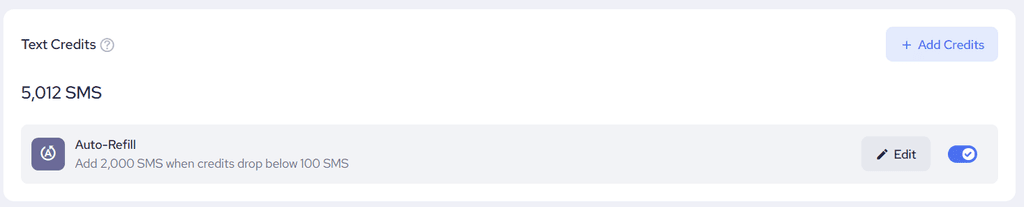
- Find the Text Credits section. Your current balance is shown in SMS credits, for example 5,012 SMS.
Hover over the question mark next to Text Credits to see this tooltip: “Your available credits for sending texts. Every text you send uses credits, including campaigns and Inbox messages. MMS uses 3 credits. Auto-refill adds credits automatically when your balance is low.”
How to avoid running out of credits
The easiest way is Auto-Refill, which adds credits automatically when your balance gets low.
- Go to Billing and find the Auto-Refill row inside Text Credits.
- Click Edit.
- Turn on Enable Auto Refill.
- Under Add, choose how many credits to add each time.
- Under When balance falls below, choose the balance that triggers a refill. The minimum is 100 credits.
- Check the Total refill cost shown under your settings. Credits are 1 cent each, so adding 5,000 credits costs $50.
- Click Save.
Once it’s saved, the Auto-Refill row on the Billing page shows your settings, for example “Add 5,000 SMS when credits drop below 100 SMS”. Use the toggle on that row to turn Auto-Refill on or off at any time.
You can also click Add Credits at any time to buy credits as a one-time purchase.
NOTE!
- Auto-Refill charges the payment method listed under Payment Method on the same page. Keep it up to date so refills don’t fail.
- If Auto-Refill is turned off, you’ll get an email when your balance falls below 500 credits, another below 100 credits, and a third when it reaches 0.
- If you send a lot of texts from the Inbox, consider a higher refill amount or a higher trigger balance so you don’t run out mid-conversation.