
Want to send an email or text blast to your contacts? You can easily do this in the Campaigns section. Follow the steps below to get started.
Step 1: Access the Campaigns Section
1. Log in to your account.
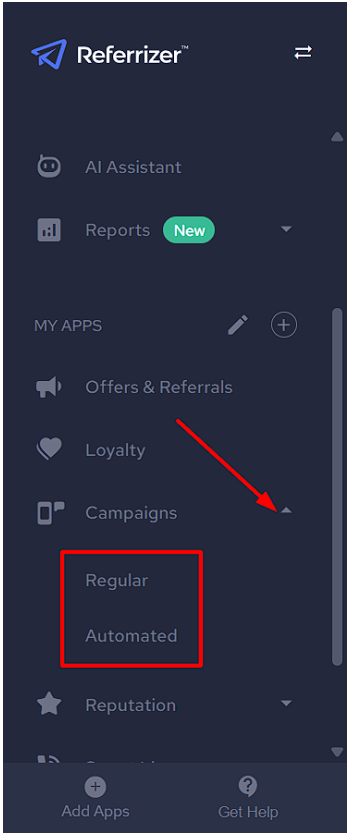
2. From the left-hand side menu, click on Campaigns.
3. Choose between Regular and Automated campaigns based on your needs
Step 2: Creating a New Campaign
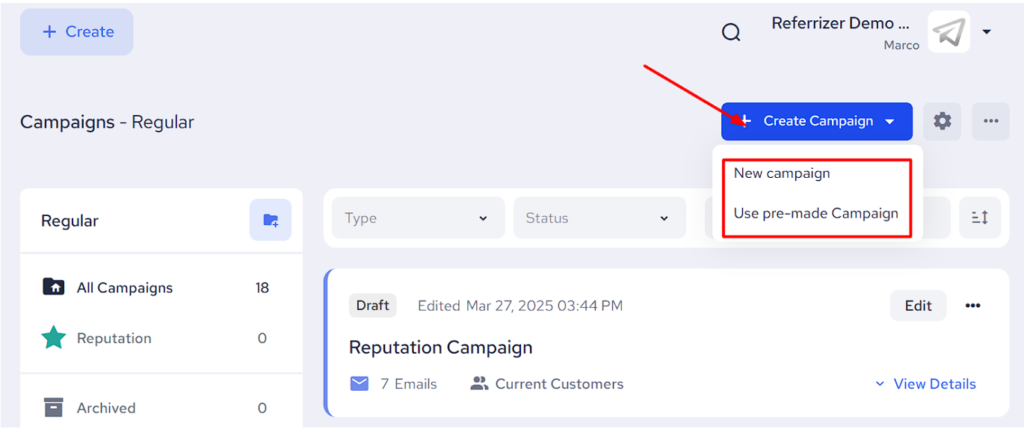
Click the blue “+ Create Campaign” button from the top-right corner of the Campaigns page and select “New Campaign” or “Use pre-maid Campaign” as displayed below.
Step 3: Set Up Your New Campaign
When creating a New Campaign from scratch, follow the on-screen instructions to configure your campaign:
- Choose a Campaign Type: Text Message or Email
- Give your new campaign a Name (this is for your own reference and will not be visible to the recipients)
- Add Content to your text/email
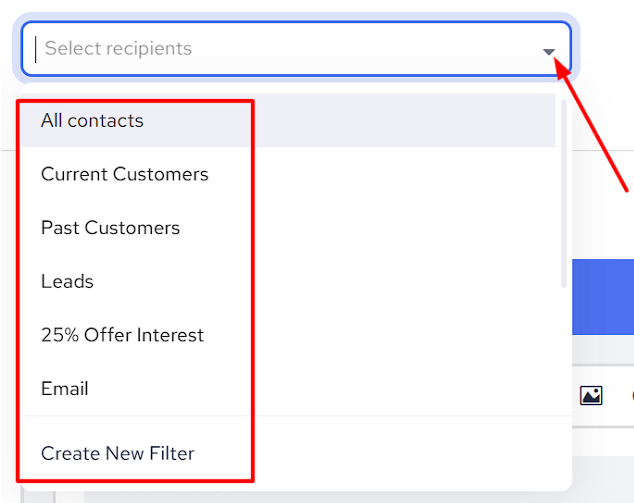
- Select Recipients like Current Customers, Leads, Past Customers or any other filter available
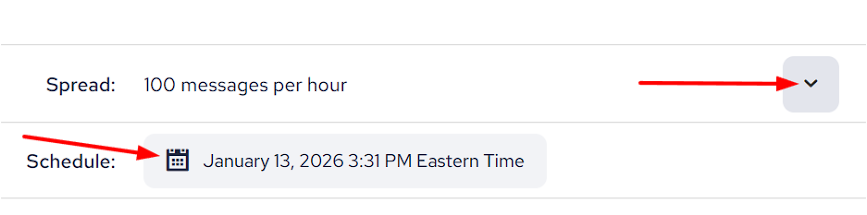
- Select the Spread (number of texts or emails sent per day/hour) and Schedule the campaign to start at your desired date and time.
Step 4: Review and Launch
1. Double-check your campaign’s details, including recipients, content and especially URL links if you have added any.
2. Click the blue “Launch” button from the top-right corner to launch the campaign or save it for later if you need more time to work on it.

That’s it! Your campaign is now ready to engage your audience. Need more help? Reach out to support@referrizer.com and we’d be happy to assist you!