
How contacts come into Referrizer and how subscription preferences are managed across our platform.
At Referrizer, we are committed to helping our clients run their marketing and communication programs responsibly and in full compliance with the Telephone Consumer Protection Act (TCPA) and US A2P 10DLC requirements. The guidelines below outline how contacts can be acquired through our platform and how opt-in and opt-out subscription preferences are captured, modified, and respected throughout the system.
These guidelines apply any time you create or manage a campaign, import contacts, or communicate with customers through Referrizer.
How to Acquire Contacts in Referrizer
Referrizer supports several ways for clients to bring contacts into the system. Each method is designed to support proper consent capture under TCPA and A2P 10DLC. The acquisition methods supported by our platform are listed below.
1. Booking System Integration
Where a booking or business management system supports an integration with Referrizer, contacts can be synced automatically. This includes both an initial backfill of existing contacts and ongoing synchronization as new contacts are added or updated in the source system.
User Responsibility: When contacts are synced from a third-party system, the account owner is responsible for keeping that data compliant. If a contact opts out, unsubscribes, or revokes consent in the third-party system (booking platform, CRM, POS, email service, etc.), it is the user’s responsibility to make sure that opt-out is reflected in Referrizer as well. Referrizer cannot automatically detect opt-outs that occur outside our platform, so the source system and Referrizer must be kept in sync to remain TCPA compliant.
2. Contact Import
Clients can import contacts directly into Referrizer in three groups — current customers, past customers, and prospects/leads. During the import, the client must select the subscription status that will apply to the contacts being imported.
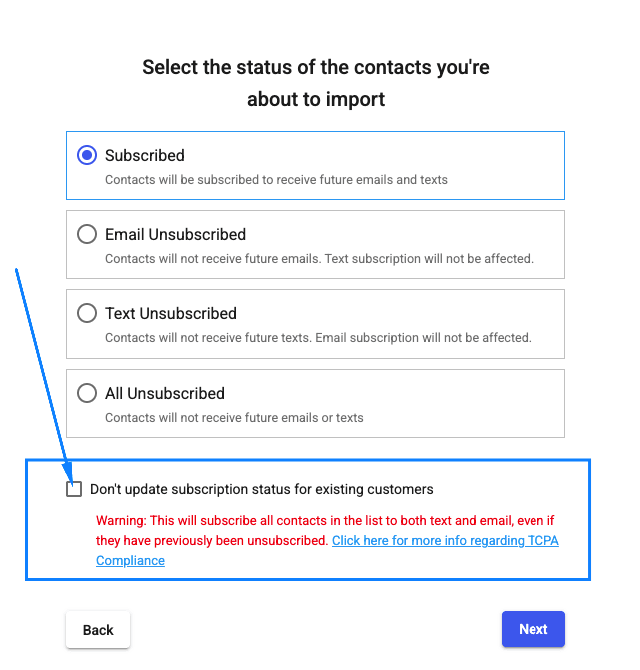
The import flow offers four subscription states: Subscribed, Email Unsubscribed, Text Unsubscribed, and All Unsubscribed. There is also an option labeled “Don’t update subscription status for existing customers,” which protects contacts already in the system from being silently re-subscribed by a new import.
Warning shown to the user: This will subscribe all contacts in the list to both text and email, even if they have previously been unsubscribed. The warning links to additional TCPA compliance information so the user understands the implications before proceeding.
3. Manual Entry
A contact can be added one at a time through the Referrizer interface. New contacts are opted out of text messages by default — the opt-in checkbox that previously appeared during contact creation has been removed to keep consent customer-initiated under TCPA. When a contact is created, the form displays a note explaining how the customer can opt in:
“New customers are opted out of text messages by default. To comply with TCPA, the customer must text START to your Smart Line (xxx) xxx-xxxx to opt in.”
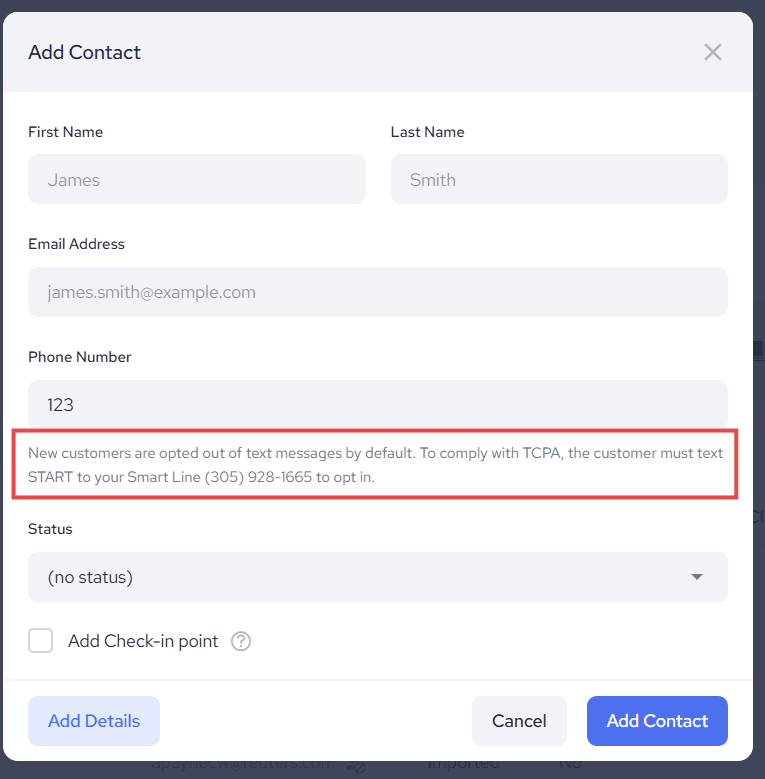
This applies to every contact-creation form: both the quick pop-up and full-details views, in both the Contacts and Inbox modules. The customer opts in by texting START to your Smart Line.
4. Zapier
Contacts can be pushed into Referrizer through a Zapier integration, connecting Referrizer to hundreds of other applications. As with direct integrations, the account owner is responsible for ensuring that any contact arriving via Zapier has provided appropriate consent in the originating application and that subsequent opt-outs in that application are propagated to Referrizer.
5. Lead-Generating Tools Inside Referrizer
Referrizer includes several lead capture tools that allow new contacts to register themselves directly into the platform. Because the contact takes the action themselves, these flows capture explicit opt-in at the source.
Offers via Referral Program
Customers can share offers with friends through the Referrizer referral program. When a new lead claims the offer, they register directly into the platform as part of the claim flow.
Offers via Website Widget
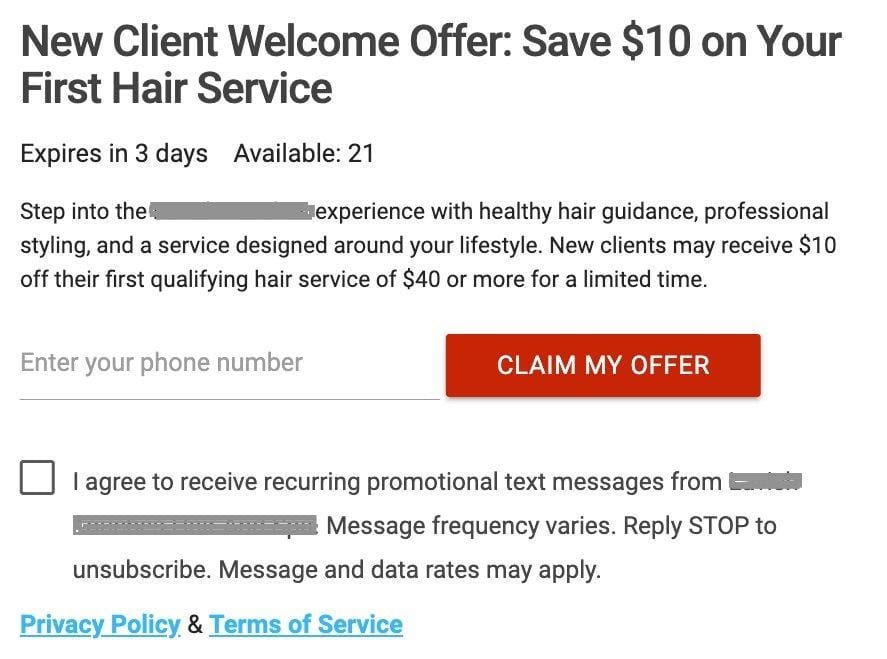
New leads can claim an offer directly from a pop-up on the client’s website using our widget. Submitting the offer claim creates the contact in Referrizer and triggers the confirmation message described below.
Consent Capture at the Point of Claim
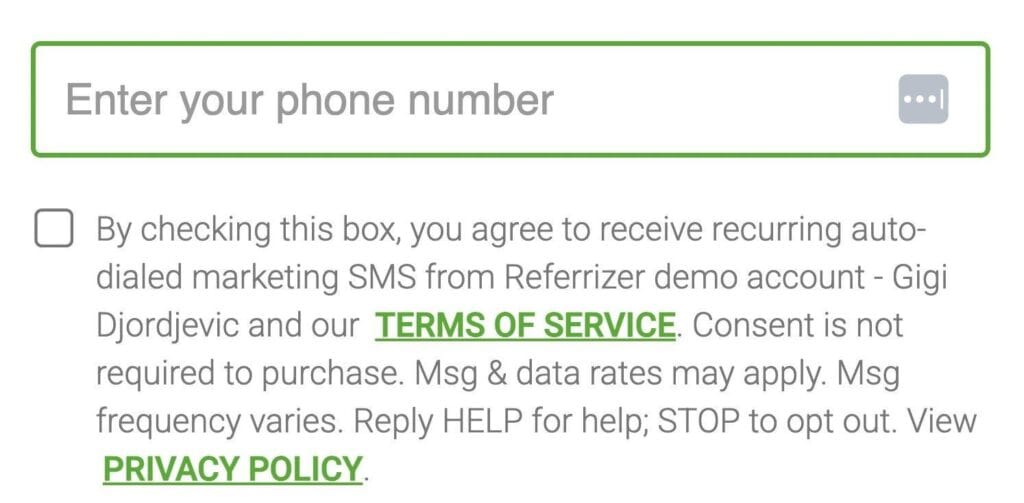
Both offer-claim flows (referral program and website widget) include an explicit TCPA-compliant consent step before the contact is created. The lead enters their phone number and must check the consent box to agree to receive recurring marketing SMS from the business. The consent text references the business name, links to the Terms of Service and Privacy Policy, and includes the required disclosures — that consent is not required to purchase, that message frequency varies, that message and data rates may apply, and that the lead can reply HELP for help or STOP to opt out.
Confirmation Text
Both offer-claim methods trigger a confirmation text to the new lead, which reads similar to this:
“Congrats, you have claimed a great deal at [account_title]. Come by or book here to redeem it before [expiration_date]. Reply STOP to opt out.”
Landing Pages
Landing pages built in Referrizer can collect contact information from leads. Each landing page includes a phone number field and a TCPA-compliant consent checkbox referencing the business name, message frequency, opt-out instructions, and links to the Privacy Policy and Terms of Service. When a lead submits the form, they are added to the account with the consent status defined by that landing page configuration.
WiFi
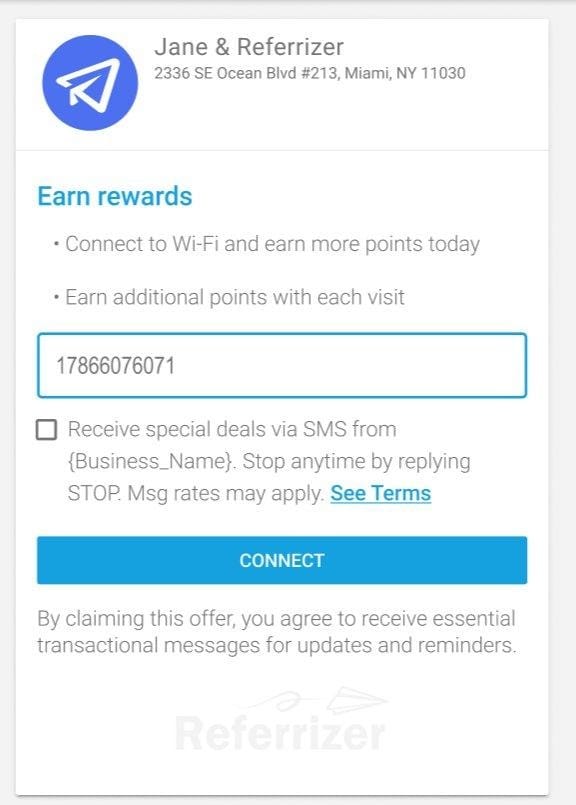
Referrizer’s WiFi capture flow can be used in-location to collect contact details from guests in exchange for WiFi access. The guest enters their phone number on the WiFi sign-in screen, which includes a separate marketing consent checkbox referencing the business name, opt-out instructions (Reply STOP), message rates, and a link to the Terms. The opt-in is captured at the point the guest submits their information.
Contact Forms
Embedded contact forms can be placed on any website to capture inbound leads. Submissions create a contact in Referrizer with the consent terms presented on the form.
6. Smart Line (Referrizer Phone Line)
Smart Line is the dedicated phone number Referrizer provides to clients for two-way texting. It supports contact acquisition in two ways:
Keyword Opt-In
If a business promotes its Smartline number and asks leads or customers to text “SUBSCRIBE”, “SUB,” or “START,” the sender is automatically added to the account as subscribed to marketing.
Inbound Call Autoresponder
Smartline has an autoresponder feature for inbound calls. When a lead calls the number, they receive an automated text asking them to confirm opt-in:
“Thank you for calling [account_title]. Reply SUBSCRIBE to opt-in to receive information directly related to your call. Opt-in not req. Msg&Data rates apply. Reply STOP to opt out.”
If the caller replies “SUBSCRIBE,” their number is opted in for texting and they receive a follow-up message:
“Thank you for your interest in [account_title]. We look forward to seeing you. Click here to see our current offer(s): [link_mobile_web_app_voucher]. Reply STOP to opt out.”
How You Can Modify Opt-In / Opt-Out Subscription Preferences
Subscription preferences in Referrizer can be modified by the account owner inside the platform, by the end user via reply keywords, and by the system itself in response to specific events. This section describes each of these paths and the safeguards built into our platform to keep your communications compliant.
1. Setting Subscription Status During Contact Import
When importing contacts, the account owner selects the subscription status that will apply: Subscribed, Email Unsubscribed, Text Unsubscribed, or All Unsubscribed. To avoid accidentally overriding the preferences of contacts already in the system, the “Don’t update subscription status for existing customers” option should be used whenever the import contains a mix of new and existing contacts.
Before completing the import, Referrizer surfaces a warning explaining the impact of the chosen status — particularly that subscribing all contacts will override previous unsubscribes if the safeguard checkbox is left unchecked.
2. Modifying Subscription Preferences Inside a Contact’s Profile
Staff cannot manually re-subscribe a contact to texts – that must come from the customer via START. Staff can still re-subscribe a contact to email from the profile (with the consent confirmation), since email is not subject to the same SMS opt-in rule.
Account owners can unsubscribe any individual contact from texts directly from that contact’s profile. When unsubscribing a contact, the system shows a confirmation warning:
“After unsubscribing a customer from texts, you won’t be able to resubscribe them. Only the customer can resubscribe, by texting START to your smart line number.”
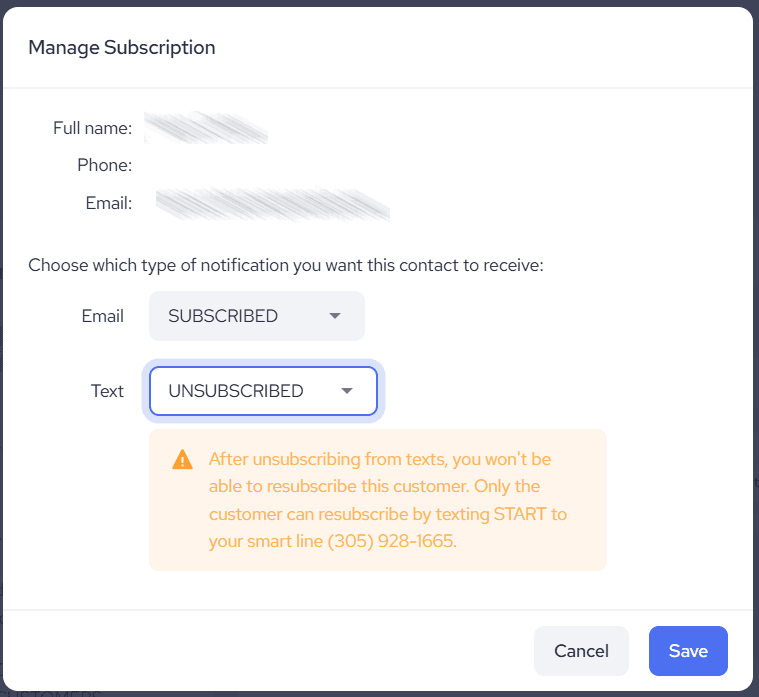
Staff cannot manually re-subscribe (opt in) a contact who is unsubscribed from texts. Under TCPA, that consent must come from the customer. When a contact is opted out, the opt-in option in their profile is disabled, with a tooltip:
“To stay TCPA compliant, the customer must opt in to marketing texts by texting START to your smart line at (xxx) xxx-yyyy.”
The only way an unsubscribed contact is re-subscribed is by texting START (or SUBSCRIBE/YES) to your Smart Line themselves. This applies regardless of how the contact entered the system and is enforced across the platform – including the API. More details can be found here.
3. Opt-Out Language in Mass Campaigns
When creating a mass campaign or follow-up sequence, every campaign message is created with “Reply STOP to OptOut” appended by default. Account owners can choose to remove this opt-out language on subsequent messages in a sequence using the unsubscribe option settings in the message editor.
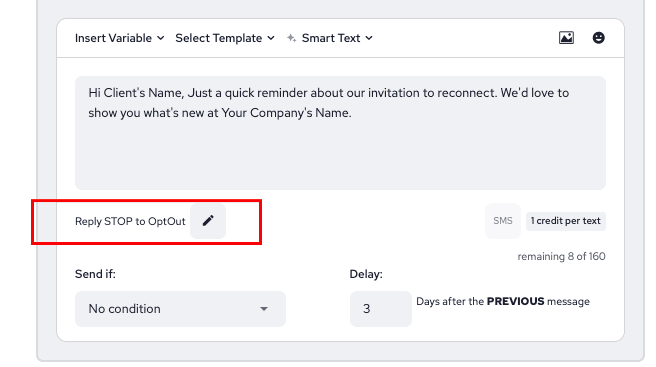
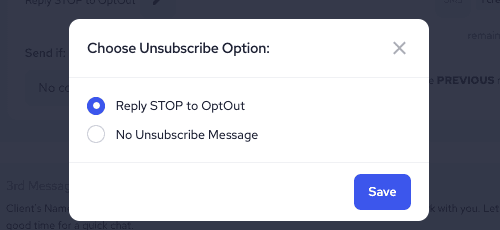
System Safeguard: Regardless of the unsubscribe option selected in the editor, the first text message ever sent to any number will always include “Reply STOP to opt-out.” This behavior is enforced by the system and cannot be removed. The option to suppress the opt-out language on later messages exists only to allow shorter follow-up texts to audiences who have already received the opt-out language.
4. Campaign Approval Before Launch
Before any mass text campaign is sent, Referrizer presents a launch confirmation dialog that requires the account owner to explicitly approve the message. The dialog shows how many contacts will receive the campaign and how many credits will be used, and includes a mandatory checkbox labeled “I approve this message to be sent to my contacts.” The Launch button is disabled until this checkbox is selected.
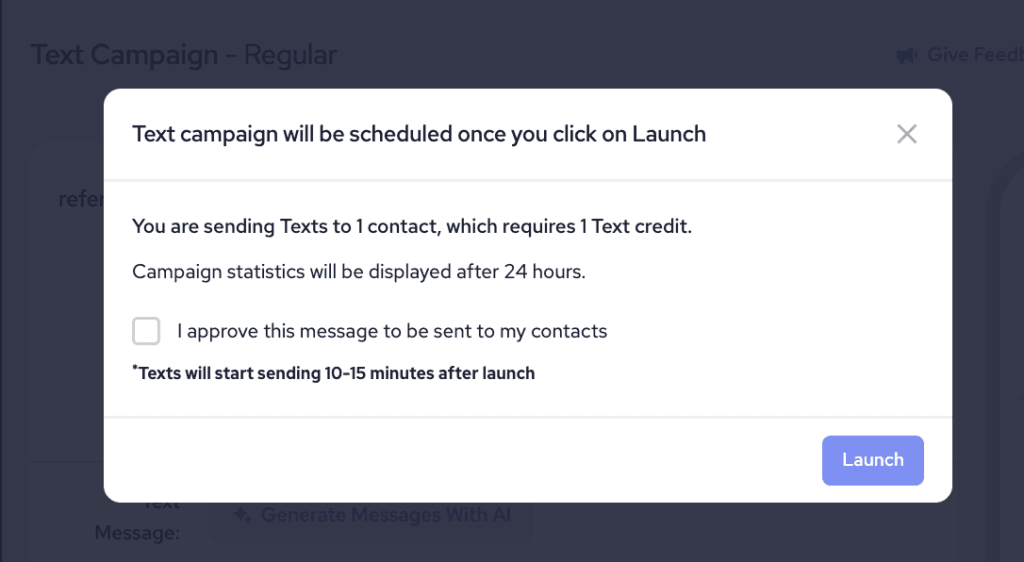
“Text campaign will be scheduled once you click on Launch“ modal with the approval checkbox
5. End-User Opt-Out (Reply STOP)
When an end user replies “STOP,” Referrizer immediately opts that contact out of mass texting. This behavior is hard-coded into our platform — once a contact has replied STOP, mass campaign messages will not be delivered to that contact, even if the account owner manually changes the subscription preference in the contact’s profile.
A contact who has replied STOP can only be re-subscribed by replying “START” or “SUBSCRIBE” to the number themselves. The account owner cannot override this on their own.
For contacts that are unsubscribed (but did not opt out via STOP), the system still allows transactional one-to-one messages from the Inbox. In that case, a clear warning is shown in the conversation view that this contact should not be sent promotional or marketing material:
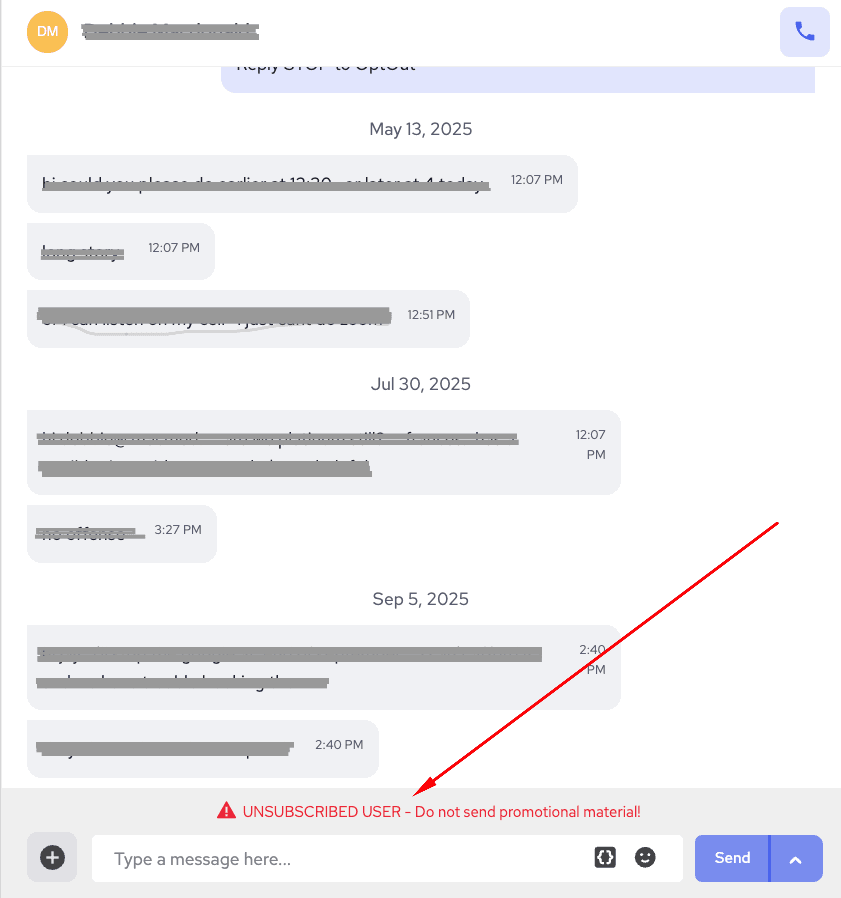
Important: End users who opted out via STOP cannot receive any messages from the platform — including transactional inbox messages. This is a hard block enforced by the system.
6. Opt-Out from Shared Short Code (Multi-Location Accounts)
Opt-out from our shared short code works slightly differently because the number is shared across multiple franchise locations. The flow depends on how many locations the contact is associated with.
Single Location — Simple STOP
If a contact is only on the list of one location, a single reply of “STOP” is sufficient to opt them out from that location.
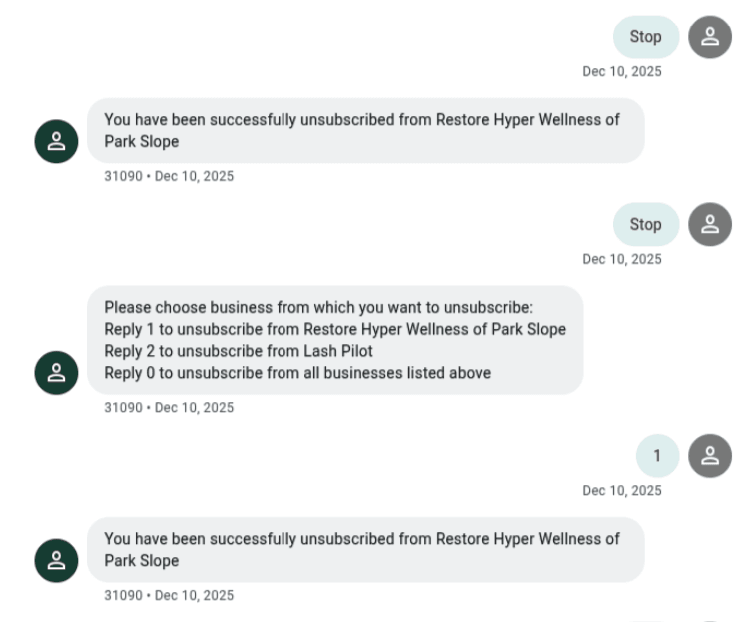
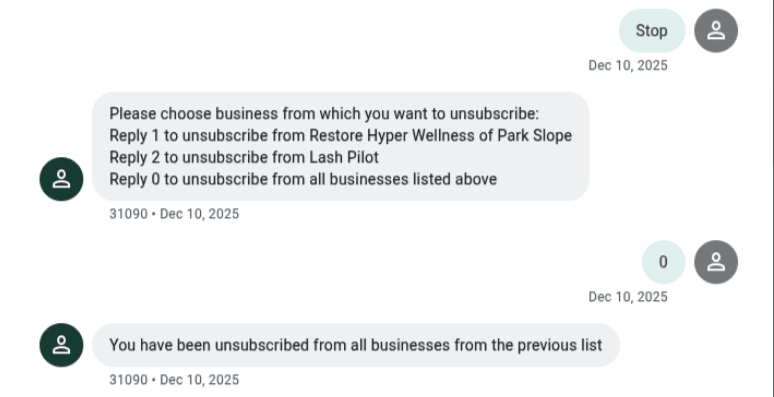
Multiple Locations — Selection Required
If a contact is on the list of multiple locations, replying “STOP” returns a follow-up message asking which location they want to unsubscribe from. The contact must respond with the corresponding number before they are opted out. Replying “0” opts the contact out from all listed locations at once.
Compliance Notes
- Account owners and users are responsible for ensuring that any contact added to Referrizer has provided appropriate consent at the source.
- When contacts are synced from third-party systems (booking platforms, CRMs, Zapier, etc.), the user is responsible for keeping subscription status in sync — including reflecting any opt-outs that occur outside Referrizer.
- Referrizer enforces a hard block on contacts who have replied STOP. They can only be re-subscribed by their own START or SUBSCRIBE reply.
- The first text sent to any new number will always include “Reply STOP to opt-out,” regardless of campaign-level settings.
- New contacts are opted out of text messages by default; there is no manual opt-in checkbox during contact creation.
- Staff can unsubscribe a contact from texts but cannot manually resubscribe them. An unsubscribed contact can only be resubscribed by texting START, SUBSCRIBE, or YES to the Smart Line. This rule is enforced across the platform, including the API, for all user types.