
Your AI Assistant’s status changes how your Inbox looks and behaves. This article shows the indications to expect in each mode, so you always know what the AI is doing.
The status banner
Whenever your AI Assistant is active, a banner at the top of your Inbox shows which mode you’re in.
In Test Mode
The banner shows a Test Mode pill and your learning progress:
- Nothing is sent automatically. Every reply is drafted by the AI and waits for your approval inside the Inbox.
- The progress counter (for example, 3/10 clean approvals) tracks how many drafts you’ve approved without edits. Approving a draft as-is moves you forward; editing one before sending simply doesn’t count – your progress is kept.
- The Go Live button stays locked until you reach 10 clean approvals. Once unlocked, one click switches your assistant to Auto Reply.

In Auto Reply
The banner shows a Live pill and a summary of your sending rules:
- During business hours – replies go out after your configured head-start (the delay that gives your team first chance to answer), or instantly if the head-start is set to zero.
- Outside business hours – replies follow your schedule settings.
- An Edit link takes you straight to your schedule in AI Assistant Settings.

Draft replies in Test Mode
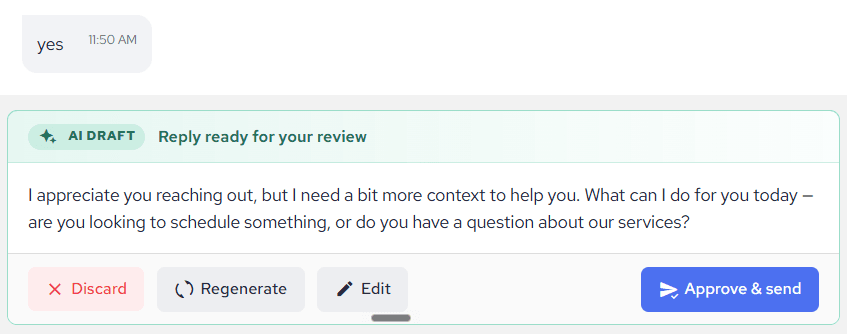
When a customer messages you in Test Mode, the AI’s draft appears inside the conversation as a clearly separated draft card – the customer sees nothing until you act:
- Approve & send – the reply goes out exactly as drafted and counts toward your progress.
- Edit – adjust the text first; the edited reply is sent but doesn’t count toward the streak.
- Dismiss – discard the draft and handle the conversation yourself.
If a draft is written outside your configured hours, a note on the card tells you how it would have been handled in Auto Reply – so Test Mode teaches you your schedule settings too.
Conversation list indicators
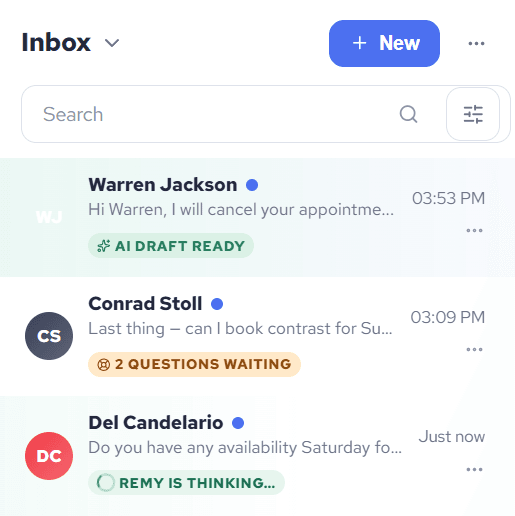
Each conversation shows a status pill so you can scan your whole Inbox at a glance:
- AI draft ready – a draft is waiting for your review (Test Mode).
- Scheduled · 8:00 AM – the reply is held until your business hours resume.
- {N} questions waiting – the AI needs a human answer. See What If AI Assistant Does Not Know The Right Answer?
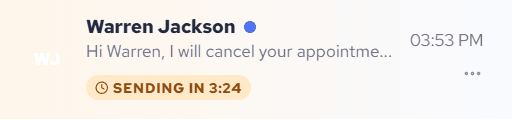
- Sending in 3:24 – in Auto Reply, the reply is queued and counting down its head-start. You can still open the conversation and step in before it goes out.
Good to know
- Switching from Auto Reply back to Test Mode is always available and doesn’t lose anything – and returning to Auto Reply later won’t re-lock it.
- In Paused mode, none of these indications appear: your Inbox works as a plain team inbox.