The Referrizer Inbox AI Assistant manages your Inbox 24/7, giving your customers instant responses, booking help, and support even outside your regular business hours.
Prerequisites
Before you begin, ensure your account has the AI Assistant feature enabled. If you do not see the AI Assistant option in your menu, please contact our support team at support@referrizer.com to request access.
Step 1: Open the AI Assistant Dashboard
Once permissions are granted, you can find the AI Assistant in your main navigation.
- Log in to your Referrizer account.
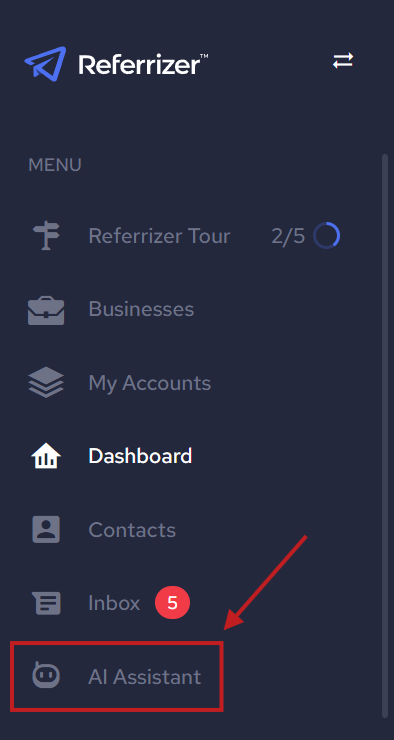
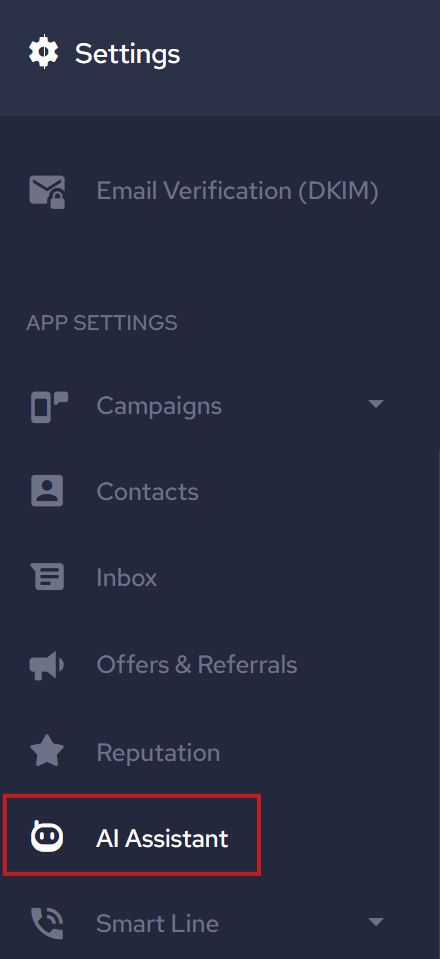
- On the left-hand sidebar menu, click on AI Assistant (located below “Inbox”).
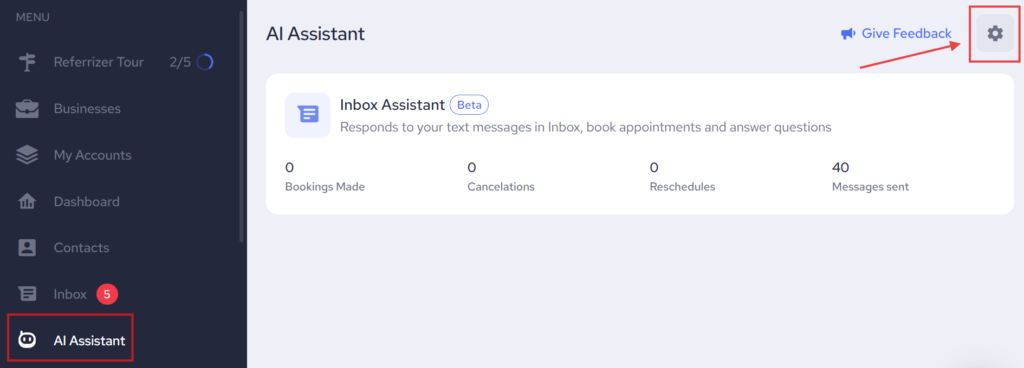
- This will open your AI Assistant Overview page, where you can see high-level stats like Bookings Made and Messages Sent.
Step 2: Opening the Settings Hub
- From the Inbox AI Assistant Overview page, click the Settings (gear icon) in the top right corner.
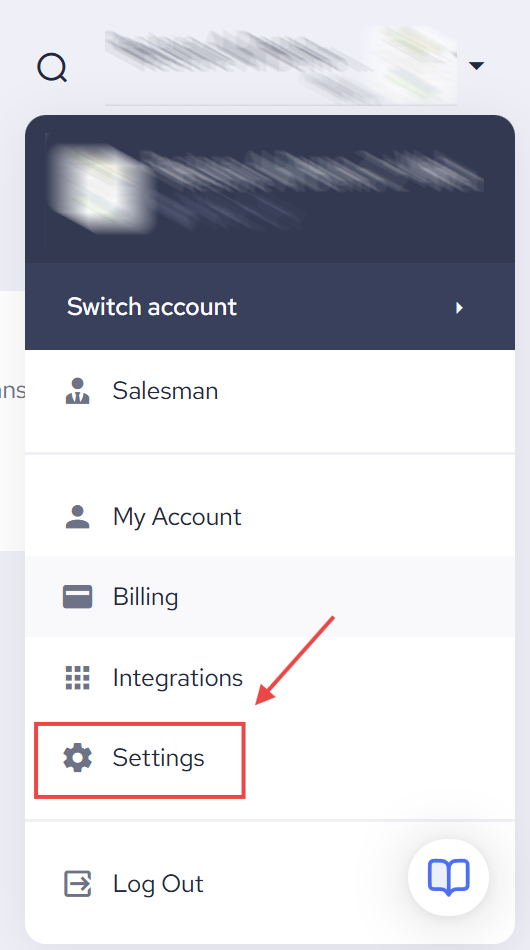
2. Alternatively, you can access this via the drop-down menu under your Business Name in the upper right corner of the screen and choose Settings → AI Assistant.
Step 3: Choose your AI Assistant status
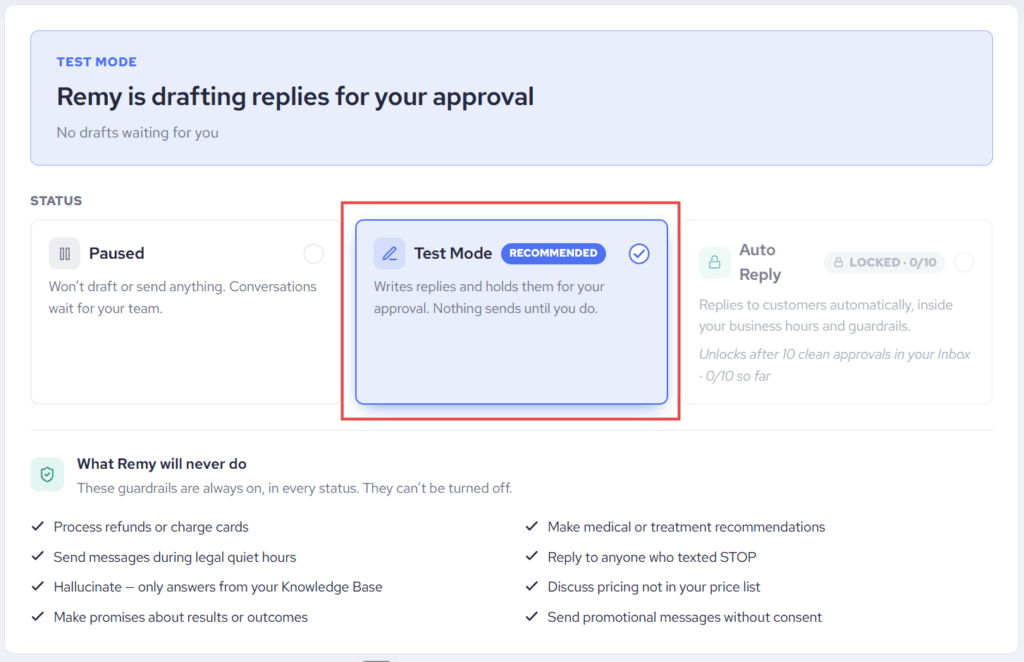
At the top of the Settings page you’ll find the Status section with three modes. Test Mode is pre-selected by default, so your AI Assistant starts in the safest mode automatically:
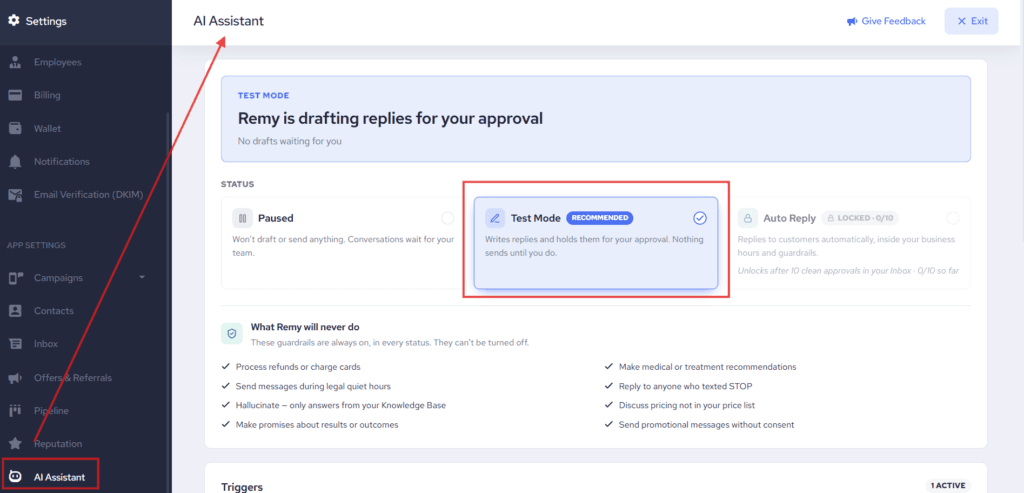
- Paused – The AI Assistant does not draft or send anything. Your Inbox works as a regular human inbox and your team handles every conversation.
- Test Mode (default) – The AI Assistant reads incoming messages and writes draft replies, but nothing is sent until you approve it. Each draft appears in the conversation with options to approve, edit, or dismiss. You see exactly how the AI would respond, with zero risk of a wrong message reaching a customer.
- Auto Reply – The AI Assistant replies to customers automatically, within your business hours and guardrails.
Note: Auto Reply stays locked until the AI Assistant proves itself in Test Mode. Once 10 draft replies are approved without edits, Auto Reply unlocks. Approving a draft as-is counts toward your progress; editing a draft before sending simply doesn’t count – your progress is kept, not reset. Once you’ve gone live, switching back to Test Mode later won’t re-lock Auto Reply.