
Your AI Assistant answers customers using the facts in your AI Knowledge Base – the single place your business information lives: your services, hours, policies, and frequently asked questions. Your knowledge base is built and kept up to date for you – your role is to review it, keep it accurate, and fill gaps the assistant runs into. This article shows you how.
Open your Knowledge Base
- On the left-hand sidebar menu, click AI Assistant.
- Click the Settings (gear icon) in the top right corner.
- Scroll to the Knowledge section and click Edit in AI Knowledge Base.
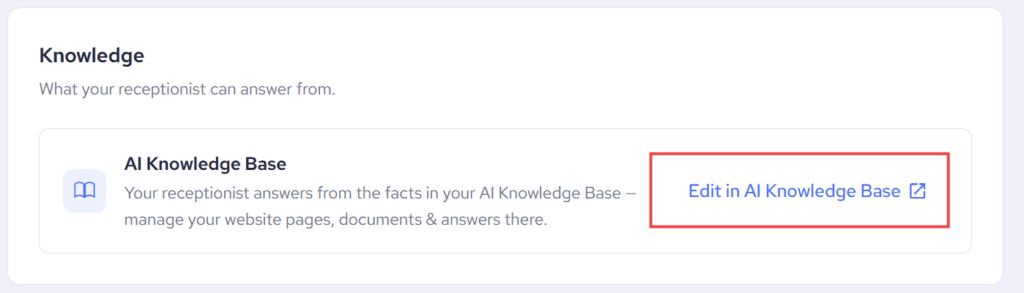
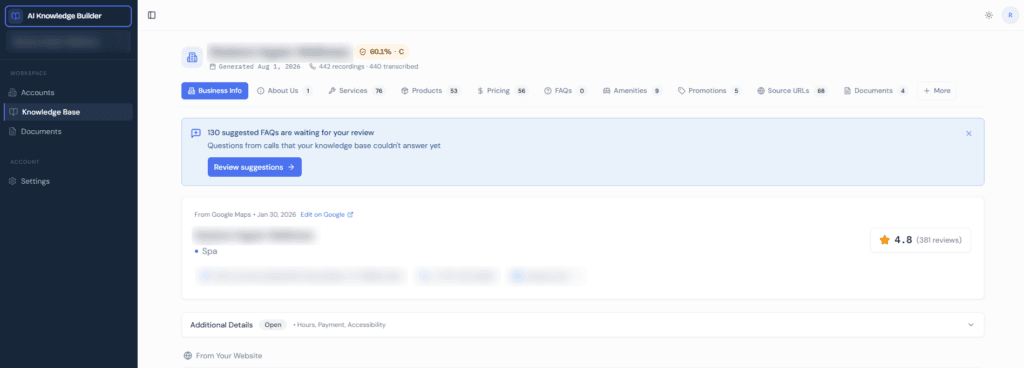
This opens AI Knowledge Builder, where your assistant’s business knowledge is managed. When you sign in you land on Accounts – click your business to open its knowledge base.

Review and edit your entries
Your information is grouped into sections such as business details, services, classes, policies, and FAQs.
- To read an entry – click it to expand it.
- To edit an entry – click the edit icon, make your changes, and save. Changes are live immediately; there is no separate publish step, and your AI Assistant answers from the updated version right away.
- To remove an entry – open the menu on the entry and choose Delete. If you remove something by mistake, contact your account team to restore it.
Multi-location note: some entries come from a shared company-wide version (marked with a small indicator). Editing one applies your version to your location only – the shared original stays untouched.
Review your documents
Open Documents from a knowledge base or from the menu to see everything added to your account. Click any document to read it; archive anything no longer relevant to hide it from your list without deleting it.
Adding new documents, connecting your website, or rebuilding your knowledge base is handled by your account team – just reach out with what you’d like added.
Train it from real conversations
Your AI Assistant also learns as you work your Inbox:
- When it doesn’t know an answer, the question is flagged for a human. Your reply is saved to the Knowledge Base, so the assistant knows the answer next time. See What If AI Assistant Does Not Know The Right Answer?
- In Test Mode, reviewing and approving drafts shows you exactly where the assistant’s knowledge has gaps – each gap you fill makes it better before it ever replies on its own.
Suggested FAQs from your calls
If call recording is switched on for your account, your AI Knowledge Base does more than store what you give it – it learns from your phone calls too.
When customers call, questions that your knowledge base couldn’t answer yet are collected as suggested FAQs. A banner at the top of your knowledge base shows how many are waiting (for example, “130 suggested FAQs are waiting for your review”).

Click Review suggestions to go through them:
- Approve a suggestion to add it to your knowledge base – your AI Assistant can answer it from then on.
- Edit the suggested answer first if it needs correcting or more detail.
- Dismiss questions that don’t apply, and they won’t be suggested again.
This is one of the fastest ways to train your assistant: the questions come straight from what your customers actually ask, so every review session closes real gaps.
If call recording is not enabled on your account and you’d like this, contact our support team at support@referrizer.com.
Keep it fresh
Review your Knowledge Base whenever something changes in your business – new services, new prices, new hours, seasonal promotions. A quick monthly check keeps your assistant’s answers accurate.