
Your AI Assistant only answers from facts it knows about your business. When a customer asks something it can’t answer confidently, it doesn’t guess – it flags the question for a human. This article shows how to spot those questions, answer them, and turn every answer into permanent knowledge.
How flagged questions look
In the conversation, the customer’s question gets an orange “Needs your answer” sticker. The AI Assistant keeps handling the rest of the conversation normally – only the question it couldn’t answer waits for you.
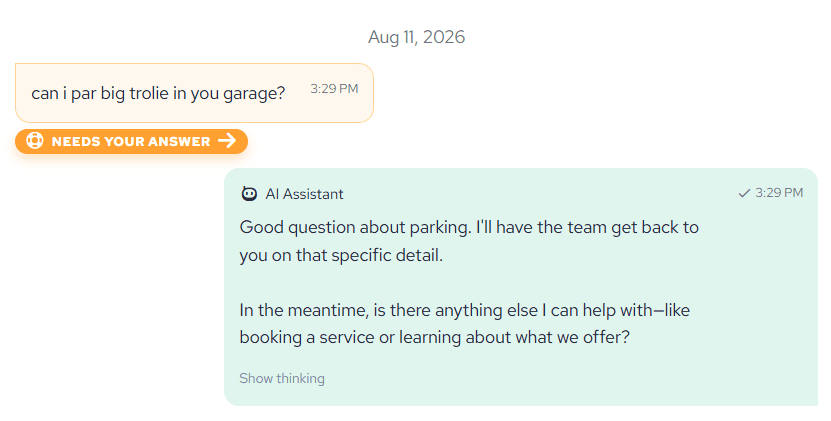
Depending on your notification settings, the people you’ve chosen also receive an SMS or email alert when a question needs human help, so nothing sits unnoticed. You can manage who gets alerted in your AI Assistant Settings.
Answering through the Answer Queue
- Open the flagged conversation. In the panel on the right you’ll find the Answer Queue – every open question from this conversation, collected in one place. (Clicking the “Needs your answer” sticker takes you straight to the matching item.)
- Type your answer under each question in plain language – just the facts, as you’d tell a colleague. No need to write a polished customer message.
- Click Send. The AI Assistant weaves your answers into one well-written reply and sends it to the customer, marked as AI Assistant (relayed your answers).
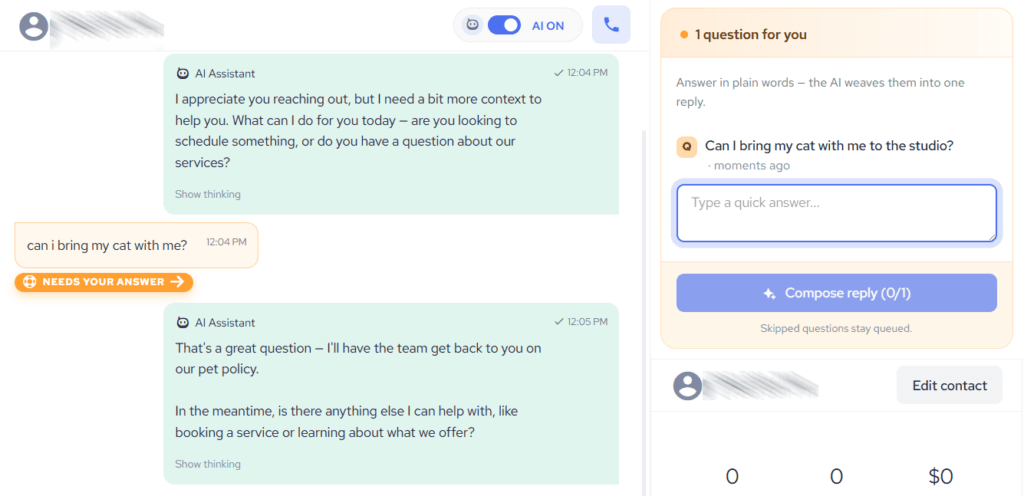
Answered questions flip to a green “Answered by AI” sticker. Unanswered questions simply stay in the queue – you can answer some now and the rest later.
Your answer becomes knowledge
Every answer you provide is saved to your AI Knowledge Base. The next time any customer asks the same thing, your AI Assistant answers it on its own – so the same question never needs a human twice.
Prefer to reply yourself?
You can always answer the customer directly from the composer instead of using the Answer Queue. And if you want the AI out of a sensitive conversation entirely, switch it off for that contact – see How Can I Switch ON or OFF My AI Assistant Per Individual Conversation?