
The Triggers section of your AI Assistant Settings controls what kicks off a conversation – the events that make your AI Assistant step in and engage a customer. This article explains each trigger and how to preview what your customers will receive.
Where to find it
- On the left-hand sidebar menu, click AI Assistant.
- Click the Settings (gear icon) in the top right corner.
- Scroll to the Triggers section. The badge in the corner (e.g. 1 ACTIVE) shows how many triggers are currently active on your account.
Available triggers
Inbound messages – ALWAYS ON
Your AI Assistant replies when a customer texts you first. This is the core trigger, and it is always on whenever your AI Assistant is active – every SMS that arrives on your Smart Line number starts or continues a conversation.
How the reply goes out depends on your AI Assistant status:
- In Test Mode, the AI writes a draft reply and waits for your approval in the Inbox.
- In Auto Reply, the AI responds automatically, inside your business hours and guardrails.
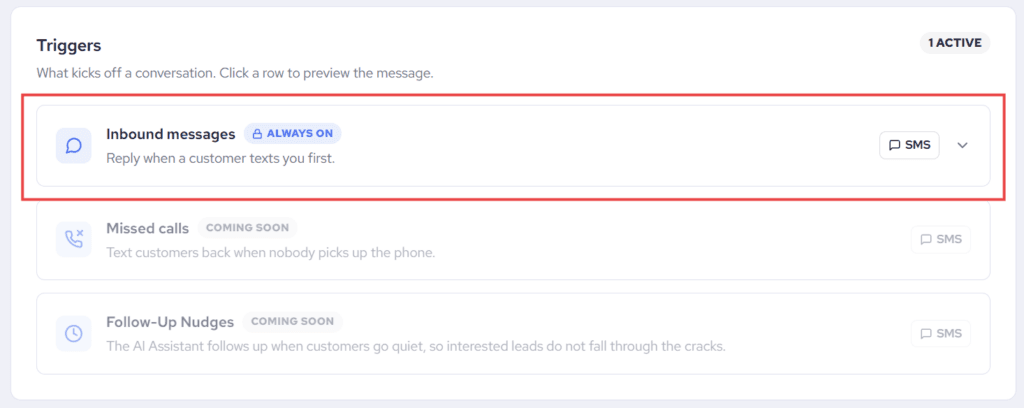
Missed calls – COMING SOON
When nobody picks up the phone, the AI Assistant will text the caller back so the conversation isn’t lost. This trigger is not yet available – it will appear as an option you can switch on in a future update.
Follow-Up Nudges – COMING SOON
When a customer goes quiet mid-conversation, the AI Assistant will follow up so interested leads don’t fall through the cracks. This trigger is also on its way in a future update.
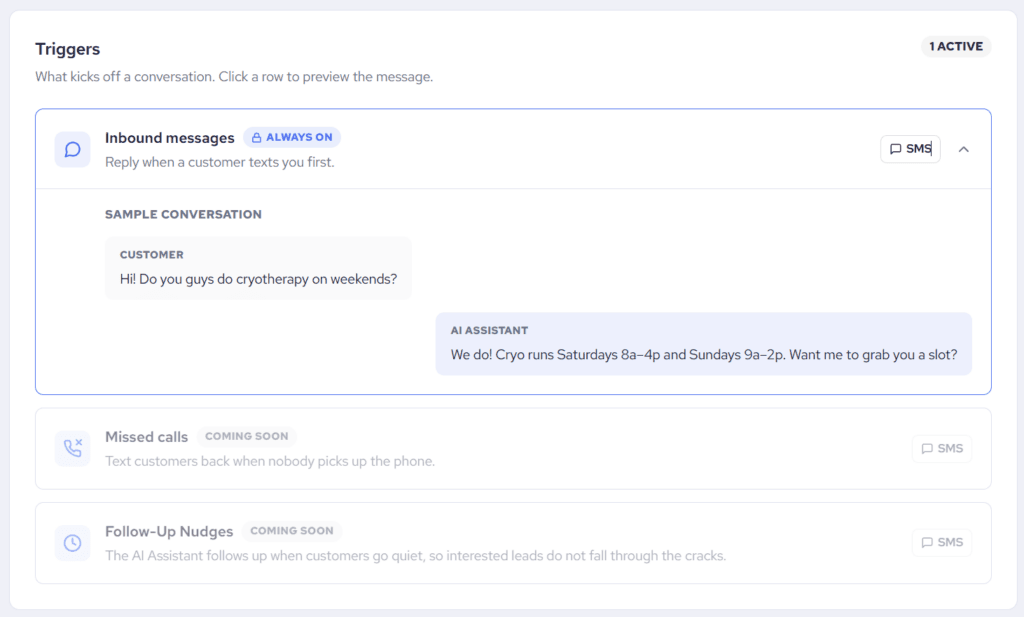
Previewing the message
Click any trigger row to expand it and preview the exact message your customers would receive for that trigger. The SMS tag on each row shows the channel the trigger uses.
Good to know
- Triggers only fire when your AI Assistant is not Paused. In Paused mode, nothing is drafted or sent.
- Inbound messages can’t be switched off individually – if you want the AI to stay out of a specific conversation, use the per-conversation AI toggle instead. See How Can I Switch ON or OFF My AI Assistant Per Individual Conversation?