
A keyword trigger lets you automatically reply to anyone who texts a specific word (like INFO or DEAL) to your Referrizer tracking number. It’s a great way to share promotions, business info, or offers instantly, without any manual work. Once set up, the campaign runs on its own.
Follow the steps below to create your keyword trigger campaign.
Creating the Campaign
- From the Campaigns section, click on Create Campaign.
- Select Text Message and click Next.
- Enter a Campaign Title.
- Select Automated Campaign and click Next.
Setting Up the Keyword Trigger
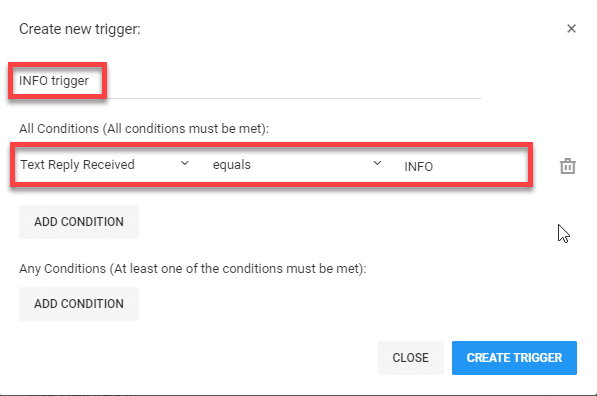
- Click the dropdown menu next to Select Trigger and then click Create new trigger.
- Enter a title for your trigger (e.g. INFO trigger).
- Click on Add Condition then select “Text Reply Received” -> “equals” -> “[keyword]”.
- Click Create Trigger.
Adding Your Message and Launching
- In the Message section, enter the message you wish to send to people who text the keyword.
- Click Launch.
The keyword trigger is now live! Anybody who texts the keyword to your tracking number will receive this new message.
Tips for Promoting Your Keyword
Your keyword only works if people know about it. Here are a few easy ways to spread the word:
- Add it to in-store signage, flyers, and receipts (e.g. “Text INFO to (555) 123-4567 for our current offers”).
- Include it in your social media posts and bio.
- Mention it in your email campaigns and newsletters.
- Train your staff to mention it to customers at checkout.
The more visibility your keyword gets, the more automated conversations and leads you’ll generate.